How to use Stripe Payment Link in Accesstype
Stripe Payment Links allow you to generate a hosted payment URL for a subscription plan directly from Accesstype, without requiring any custom checkout integration.
- Navigate to the plan in Accesstype
Go to the Plans page in Accesstype and open the plan for which you want to create a Stripe Payment Link. Scroll down to the Pricing section. Under the Stripe section, click Connect to link your Stripe account if not already connected.
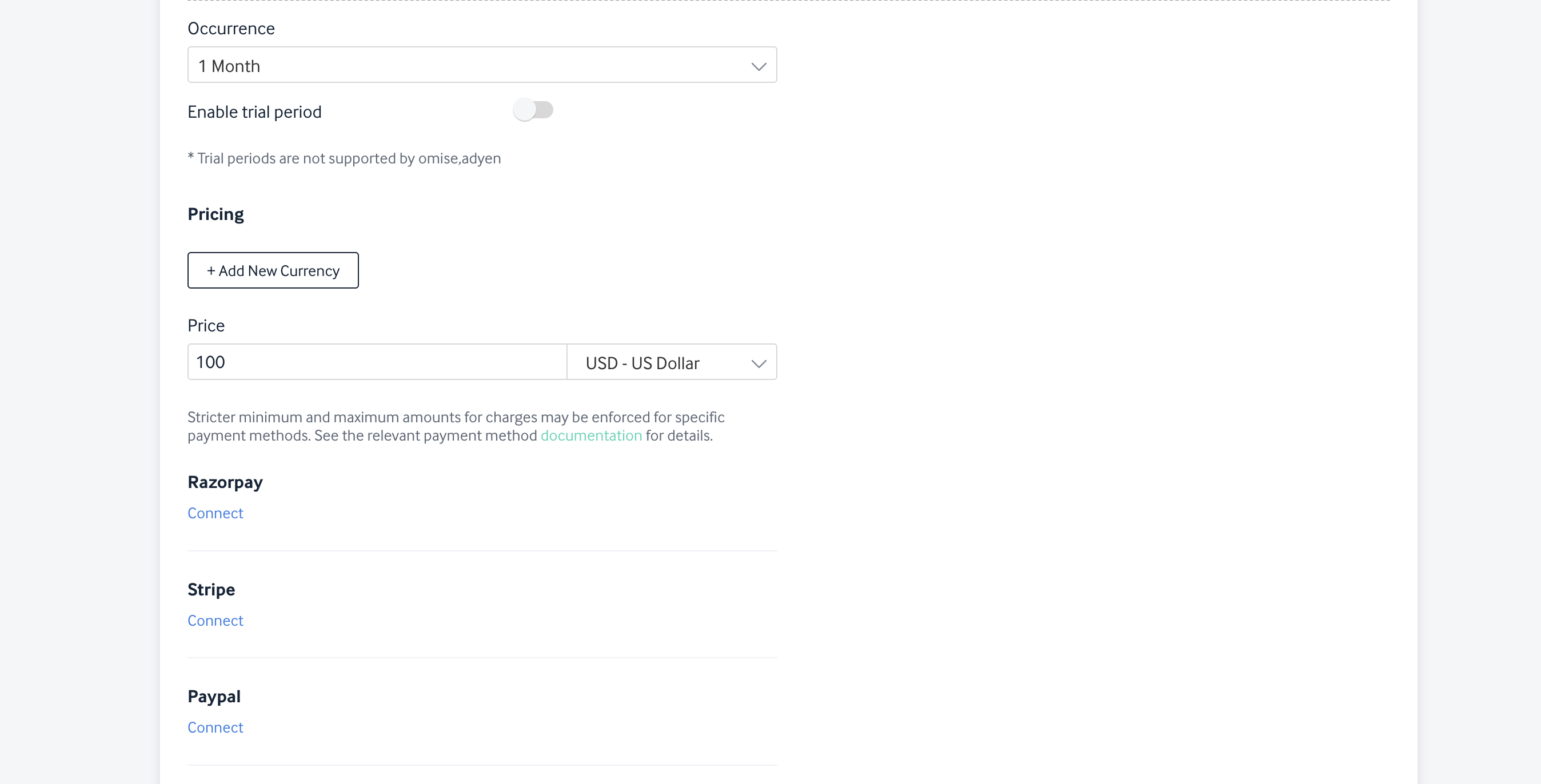
- Create a Payment Link
Once Stripe is connected, click the Create Payment Link option that appears next to the Update action under the Stripe section.

- View the generated Payment Link
Click Show Details to expand the Stripe section. You will see the Stripe Price ID for the plan and the generated Payment Link URL (e.g., https://buy.stripe.com/...).

You can copy this Payment Link and share it directly with users or embed it in your site to allow purchases without a custom checkout flow.
Limitations
- Multi-currency is not supported. Stripe Payment Links in Accesstype work with a single currency only. If your plan uses multi-currency pricing, the payment link will not reflect alternate currencies.
- Plan updates are not reflected. Once a payment link is created for a plan, any subsequent changes made to the plan (price, duration, etc.) in Accesstype will not automatically update the existing payment link. You will need to create a new payment link after updating the plan.
Callout — Duplicate Payments
Stripe Payment Links are hosted externally by Stripe. Because of this, Accesstype only learns about a completed payment when Stripe sends a webhook notification.
What happens on first payment: When a user completes payment via the link for the first time, Stripe fires a webhook to Accesstype, and the subscription is created in AT.
What happens if the same user pays again (accidentally): If the user visits the same payment link and completes payment a second time, Stripe processes the payment successfully — however, Accesstype cannot create a duplicate subscription for the same asset. The second payment will be received by Stripe but will not result in a new or extended subscription in AT.
Resolution in such cases:
- Cancel the duplicate subscription from the Stripe dashboard.
- Issue a refund to the customer for the duplicate charge from Stripe.
Note: There is currently no automated handling for this scenario. It requires manual intervention from the support or operations team.